---
title: "How to Publish a Flutter App: Step by Step to the App Store & Google Play"
description: "Publish your Flutter app with confidence: From preparation to Google Play release to Apple App Store. Complete guide with code examples, common mistakes, and practical tips."
canonical_url: "https://robocitrus.com/en/blog/flutter-app-veroeffentlichen"
last_updated: "2026-03-27T08:00:00.000Z"
locale: en
meta:
"og:description": "Publish your Flutter app with confidence: From preparation to Google Play release to Apple App Store. Complete guide with code examples, common mistakes, and practical tips."
"og:image": "https://robocitrus.com/images/blog/flutter-app-veroeffentlichen.webp"
"og:title": "How to Publish a Flutter App: Step by Step to the App Store & Google Play"
---
> Index of every page on this site: [llms.txt](https://robocitrus.com/llms.txt)
# **How to Publish a Flutter App: Step by Step to the App Store**
[**Maximilian Flechtner**](https://robocitrus.com/en/about)
Published:March 27, 2026
1 min read
[**Flutter**](https://robocitrus.com/en/blog/tags/flutter) [**App Development**](https://robocitrus.com/en/blog/tags/app%20development) [**Android**](https://robocitrus.com/en/blog/tags/android) [**iOS**](https://robocitrus.com/en/blog/tags/ios)
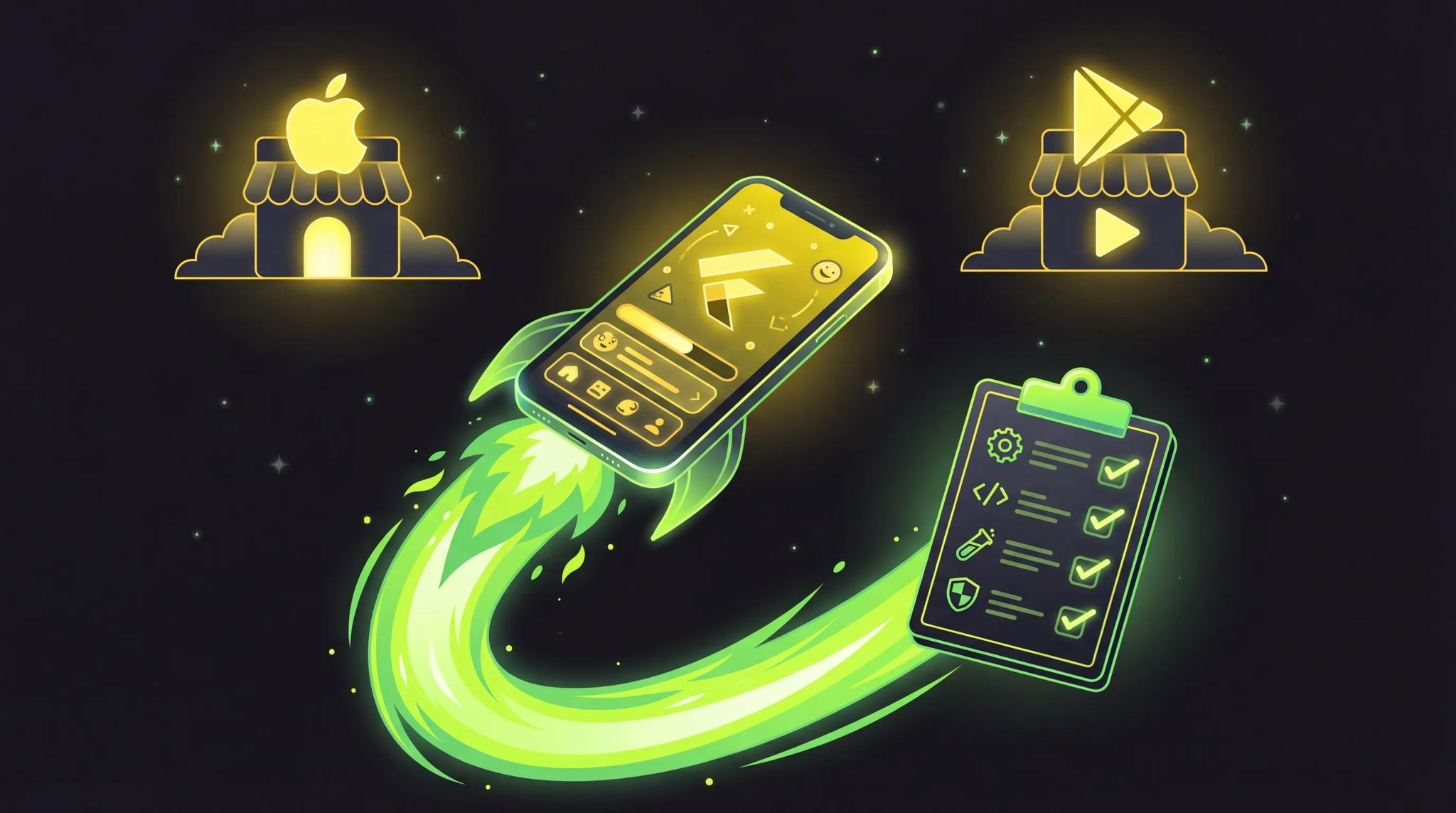
You've spent weeks building your Flutter app. The features are done, the tests pass, the design looks great. And now? Now comes the part most tutorials skip: actually getting the app into the App Store and Google Play Store. When I published my first Flutter app, this process cost me more nerves than the actual development. Setting up accounts, generating certificates, creating screenshots, filling out forms -- it feels like filing paperwork at a government office, just digital. But don't worry: I'll walk you through the entire process step by step so your Flutter app finds its way into the stores.
---
## Quick Summary
- You need an Apple Developer Account ($99/year) and a Google Play Console ($25 one-time) before you can start
- App icon, splash screen, bundle ID, and version number must be correctly configured before release
- For Android you create an App Bundle ( `**flutter build appbundle**`), for iOS an IPA ( `**flutter build ipa**`)
- Google Play review takes about 1-3 days, Apple App Store review about 1-7 days
- Most common mistakes: missing screenshots, wrong signing configuration, and forgotten permissions
---
## Prerequisites: What You Need Before Getting Started
Before you even type a build command, you need to have a few things ready. Think of it like driving a car: before you hit the road, you need a license, registration papers, and a full tank of gas. Here's your checklist:
### Developer Accounts
**Apple Developer Program:**
- Cost: **$99 per year**
- Sign up at [**developer.apple.com**](https://developer.apple.com)
- Verification takes 24-48 hours (sometimes longer)
- You need an Apple ID and a Mac for the iOS build
**Google Play Console:**
- Cost: **$25 one-time** (lifetime access)
- Sign up at [**play.google.com/console**](https://play.google.com/console)
- Since November 2023 you must complete [**developer verification**](https://robocitrus.com/en/blog/entwicklerverifizierung)
- Verification can take up to 7 days -- so start early
### Technical Requirements
- Flutter SDK up to date (at least Stable Channel)
- Xcode installed and up to date (for iOS)
- Android Studio or Android SDK Command-Line Tools
- A fully tested Flutter project
- App icon in high resolution (1024x1024 px)
- Screenshots for various device sizes
## Preparing Your App for Release
Now it gets concrete. Before we create a build, we need to make the app release-ready. This step is often skipped -- and then people wonder why the store rejects their app.
### Setting the App Name and Bundle ID
The **Bundle ID** (iOS) or **Application ID** (Android) is the unique identifier of your app. Once it's in the store, you can't change it. So choose wisely.
For Android in `**android/app/build.gradle**`:
```
android {
defaultConfig {
applicationId "com.yourcompany.yourapp"
minSdkVersion 21
targetSdkVersion 34
}
}
```
For iOS in `**ios/Runner.xcodeproj/project.pbxproj**` or directly in Xcode under **Runner > Signing & Capabilities**:
```
PRODUCT_BUNDLE_IDENTIFIER = com.yourcompany.yourapp
```
**Tip:** Use reverse domain notation (`**com.companyname.appname**`). Keep the name short and use only lowercase letters.
### Generating the App Icon
Nobody wants to manually export icons in 47 different sizes. The `**flutter_launcher_icons**` package handles this automatically.
```
# pubspec.yaml
dev_dependencies:
flutter_launcher_icons: ^0.14.3
flutter_launcher_icons:
android: true
ios: true
image_path: "assets/icon/app_icon.png"
min_sdk_android: 21
adaptive_icon_background: "#FFFFFF"
adaptive_icon_foreground: "assets/icon/app_icon_foreground.png"
```
Then run:
```
dart run flutter_launcher_icons
```
This generates all required icon sizes for Android (including Adaptive Icons) and iOS. Your source icon should be at least 1024x1024 pixels and in PNG format.
### Setting Up the Splash Screen
The splash screen is the first thing users see when they open your app. Set it up cleanly with `**flutter_native_splash**`:
```
# pubspec.yaml
dev_dependencies:
flutter_native_splash: ^2.4.6
flutter_native_splash:
color: "#FFFFFF"
image: "assets/splash/splash_logo.png"
android_12:
image: "assets/splash/splash_logo.png"
color: "#FFFFFF"
```
```
dart run flutter_native_splash:create
```
### Setting the Version Number
In `**pubspec.yaml**` you'll find your app's version:
```
version: 1.0.0+1
```
The format is: `**major.minor.patch+buildNumber**`. The number before the `**+**` is the version number users see. The number after the `**+**` is the build number -- only the store sees it. **Important:** The build number must be incremented with every upload, otherwise the store will reject it.
### Final Checks Before Release
Before you start the build, go through this checklist:
- **Debug banner removed?** Set `**debugShowCheckedModeBanner: false**` in your `**MaterialApp**` (or simply use release mode -- it's gone automatically)
- **Permissions correct?** Only request permissions your app actually needs. Unnecessary permissions are a common reason for rejection
- **API keys not hardcoded?** Sensitive data doesn't belong in source code. Use environment variables or a secrets management solution
- **Logging removed?** No `**print()**` statements or debug logs in the release build
## Publishing Your Android App: Google Play Store
Android is the easier entry point. The process is more straightforward, review times are shorter, and the account is cheaper. Let's start here.
### Step 1: Create a Signing Key
Android apps must be digitally signed. Create a keystore:
```
keytool -genkey -v -keystore ~/upload-keystore.jks -keyalg RSA \
-keysize 2048 -validity 10000 -alias upload
```
**Keep this key safe!** If you lose it, you won't be able to publish updates for your app. I recommend storing it encrypted in a password manager.
Create a file `**android/key.properties**`:
```
storePassword=your_password
keyPassword=your_key_password
keyAlias=upload
storeFile=/path/to/upload-keystore.jks
```
And reference it in `**android/app/build.gradle**`:
```
def keystoreProperties = new Properties()
def keystorePropertiesFile = rootProject.file('key.properties')
if (keystorePropertiesFile.exists()) {
keystoreProperties.load(new FileInputStream(keystorePropertiesFile))
}
android {
signingConfigs {
release {
keyAlias keystoreProperties['keyAlias']
keyPassword keystoreProperties['keyPassword']
storeFile keystoreProperties['storeFile'] ? file(keystoreProperties['storeFile']) : null
storePassword keystoreProperties['storePassword']
}
}
buildTypes {
release {
signingConfig signingConfigs.release
}
}
}
```
**Important:** Add `**key.properties**` and your keystore to `**.gitignore**`! These files should never end up in your repository.
### Step 2: Create the Release Build
Now we create the App Bundle for the Play Store:
```
flutter build appbundle --release
```
This generates an `**.aab**` file at `**build/app/outputs/bundle/release/app-release.aab**`. If you're wondering what the difference between an App Bundle and an [**APK file**](https://robocitrus.com/en/blog/was-ist-ein-apk) is: the AAB is the modern format that Google has required for the Play Store since 2021. Google generates optimized APKs from it for each device.
### Step 3: Upload the App in Google Play Console
1. Open the [**Google Play Console**](https://play.google.com/console)
2. Click **"Create app"**
3. Choose the default app category and language
4. Go to **Release > Production > Create new release**
5. Upload your `**.aab**` file
6. Add release notes (what's new in this version?)
Google will ask you during upload whether you want to use **Play App Signing**. **Yes, absolutely!** This means Google manages your signing key -- it's more secure, and you can't lose the key.
### Step 4: Create the Store Listing
This is where it's decided whether users install your app or scroll past it. You'll need:
- **App name** (max 30 characters)
- **Short description** (max 80 characters)
- **Full description** (max 4,000 characters)
- **Screenshots** -- at least 2, recommended 8 (for phone and tablet)
- **Feature Graphic** (1024x500 px)
- **App icon** (512x512 px, taken from the build)
**Tip for screenshots:** Use tools like [**screenshots.pro**](https://screenshots.pro) or Figma to create professional store screenshots with device frames and text overlays. Good screenshots significantly increase install rates.
### Step 5: Content Rating
Google requires an age rating. You answer a questionnaire about your app's content (violence, language, in-app purchases, etc.). It takes 5 minutes and is straightforward. Answer the questions honestly -- a false rating can lead to removal from the store.
### Step 6: Pricing & Distribution
Decide whether your app is free or paid. **Careful:** An app published as free can never be switched to paid. The other way around is possible.
Choose the countries where your app should be available and whether it contains ads.
### Step 7: Review & Release
Once everything is filled in, click **"Submit for Review"**. Google reviews your app, and it typically takes **1-3 days**. For your first app it might take a bit longer. You'll get an email once the app is approved or rejected.
Common rejection reasons at Google:
- Incomplete store listing
- Missing privacy policy
- App crashes on launch
- Misleading description
## Publishing Your iOS App: Apple App Store
The Apple route is a bit more involved. You need a Mac, Xcode, and patience. But the App Store is a massive market you shouldn't ignore. The [**cost of app development**](https://robocitrus.com/en/blog/app-entwicklung-kosten-2026) pays off particularly well here, since iOS users statistically spend more on apps.
### Step 1: Configure Xcode
Open your Flutter project in Xcode:
```
open ios/Runner.xcworkspace
```
In Xcode under **Runner > Signing & Capabilities**:
1. Select your **Team** (your Apple Developer Account)
2. Make sure **Automatically manage signing** is enabled
3. Check the **Bundle Identifier** -- must match your app
4. Add necessary **Capabilities** (Push Notifications, In-App Purchases, etc.)
If you have issues with signing certificates: go to **Xcode > Settings > Accounts** and make sure your Apple Developer Account is properly set up. Xcode creates the needed Provisioning Profiles automatically.
### Step 2: Create the Release Build
```
flutter build ipa --release
```
This creates an `**.ipa**` file at `**build/ios/ipa/**`. If the build fails, check:
- Is Xcode up to date?
- Is the minimum iOS version correct in `**ios/Podfile**` ( `**platform :ios, '13.0'**`)?
- Did you run `**pod install**` in the `**ios/**` directory?
```
cd ios && pod install && cd ..
flutter build ipa --release
```
### Step 3: Upload the App to App Store Connect
There are two ways to upload the IPA to Apple:
**Option A: Via Xcode (Transporter)**
```
# Open the Xcode Organizer
open build/ios/archive/Runner.xcarchive
```
In the Xcode Organizer: **Distribute App > App Store Connect > Upload**
**Option B: Via command line**
```
xcrun altool --upload-app --type ios \
--file build/ios/ipa/your_app.ipa \
--apiKey YOUR_API_KEY \
--apiIssuer YOUR_ISSUER_ID
```
After the upload completes, the build appears in [**App Store Connect**](https://appstoreconnect.apple.com) under your app. This can take a few minutes.
### Step 4: Set Up App Store Connect
In App Store Connect you create your app listing:
- **App name** (max 30 characters)
- **Subtitle** (max 30 characters)
- **Description** (max 4,000 characters)
- **Keywords** (max 100 characters, comma-separated)
- **Screenshots** for all supported device sizes (iPhone 6.7", 6.5", 5.5", iPad)
- **App preview videos** (optional but recommended)
- **Privacy policy URL** (mandatory!)
- **Contact information**
- **Age rating** (similar to Google)
### Step 5: TestFlight (Optional But Recommended)
Before you submit your app for review, I recommend a TestFlight test. TestFlight is Apple's beta testing platform:
1. Go to **TestFlight** in App Store Connect
2. Select your build
3. Add internal or external testers
4. Testers receive an invitation and can install the app via the TestFlight app
External testers require a brief Apple review (1-2 days), internal testers (your team) can test immediately. This is your last chance to catch bugs before real users see the app.
### Step 6: Submit for Review
When everything is ready:
1. Go to your app in App Store Connect
2. Select the build under **"Build"**
3. Fill in all required fields
4. Click **"Submit for Review"**
Apple reviews the app manually. This takes **1-7 days**, averaging 24-48 hours. Apple is stricter than Google -- expect your first submission to be rejected. That's normal and no reason to panic.
Common rejection reasons at Apple:
- App crashes or has obvious bugs
- Design doesn't follow Human Interface Guidelines
- Privacy policy is missing or incomplete
- App description doesn't match actual functionality
- Login-based app without a demo account for the reviewer
**Pro tip:** If your app requires login, provide a demo account in the review notes. Apple reviewers must be able to test every feature, otherwise the app gets rejected.
## Common Mistakes When Publishing a Flutter App
I've shipped dozens of Flutter apps to the stores over the past few years and learned a lot along the way. Here are the five most common mistakes I see:
### 1. Forgetting the Signing Configuration
**Problem:** The release build fails because the signing configuration is missing or the keystore can't be found.
**Solution:** Check `**key.properties**` (Android) and the signing configuration in Xcode (iOS). Test the release build locally before uploading.
### 2. Screenshots in the Wrong Size
**Problem:** The store rejects screenshots because they don't meet the exact size requirements.
**Solution:** Google requires screenshots in at least 16:9 or 9:16 with a minimum of 320 px on the shortest side. Apple needs pixel-exact sizes for each device class. Use emulator screenshots or Figma templates.
### 3. Forgotten Permissions in Info.plist
**Problem:** The app uses camera or location, but the usage description is missing from `**Info.plist**` (iOS). Apple rejects immediately.
**Solution:** Add a usage description for every permission in `**ios/Runner/Info.plist**`:
```
NSCameraUsageDescription
We need camera access for profile photos.
NSLocationWhenInUseUsageDescription
We use your location to show offers near you.
```
### 4. Not Incrementing the Build Number
**Problem:** You upload a new build, but the store says "Build already exists".
**Solution:** Increment the build number in `**pubspec.yaml**`: `**version: 1.0.0+2**` instead of `**version: 1.0.0+1**`. The build number must increase with **every** upload.
### 5. Missing Privacy Policy
**Problem:** Both stores now require a privacy policy. Without a link, the app gets rejected.
**Solution:** Create a privacy page on your website and link it in the store listing. It must explain what data you collect, how you use it, and how users can delete their data.
## After the Release: What Now?
Congratulations, your app is live! But the work doesn't stop here. In fact, it's just getting started.
### Set Up Crash Reporting
Before you lean back: set up crash reporting if you haven't already. Firebase Crashlytics or Sentry show you in real-time when users are having problems.
```
# pubspec.yaml
dependencies:
firebase_crashlytics: ^4.3.3
```
### Monitor Reviews and Ratings
The first reviews determine your app's success. Respond to negative feedback quickly and professionally. A bug fix within a week shows users you care.
### Plan Updates
Plan regular updates. Not just for new features, but also for:
- Bug fixes (they will come, guaranteed)
- Operating system updates (iOS and Android have annual major releases)
- Dependency updates (security patches!)
For critical hotfixes you can use [**Code Push**](https://robocitrus.com/en/blog/code-push-updates-ohne-app-store) to deliver updates directly to users without a store review. That saves you days in an emergency.
### Analyze Your Analytics
Look at how users interact with your app. Which features are being used? Where do users drop off? Google Analytics, Firebase Analytics, or PostHog give you insights that are worth gold for further development.
## Conclusion
Publishing a Flutter app isn't rocket science -- but it's not a five-minute job either. The process has many steps, and each one can go wrong when you're doing it for the first time. The good news: after your first app, you know the drill and it gets faster every time.
My most important advice: **Start early.** Set up your developer accounts while you're still building. Prepare screenshots while you're polishing the last features. And test the release build regularly on real devices, not just in the emulator.
If you need help publishing your Flutter app or want to [**hand off the entire app development**](https://robocitrus.com/en/blog/app-entwickeln-lassen) -- [**get in touch**](https://robocitrus.com/contact). I'll help you get your app cleanly into the stores.
---
*Have you published your first Flutter app? What was the biggest hurdle for you? [**Let me know**](https://robocitrus.com/contact) -- I'd love to hear about your experience!*
## Frequently Asked Questions
You need an Apple Developer Account for $99 per year and a Google Play Console account for a one-time $25. So the pure store fees are manageable. On top of that come potential costs for screenshots, app store optimization, and [**ongoing costs**](https://robocitrus.com/en/blog/laufende-app-kosten) like hosting and backend. The actual [**app development**](https://robocitrus.com/en/blog/app-entwicklung-kosten-2026) is the biggest cost factor.
Google Play review typically takes 1-3 days, sometimes up to 7 days for new developer accounts. Apple usually takes 1-7 days, with most apps being reviewed within 24-48 hours. For your very first app in both stores, plan for 1-2 weeks total, including potential rejections and corrections.
Yes, that's one of the big advantages of Flutter: one codebase, two stores. You create a platform-specific build for each (`**flutter build appbundle**` for Android, `**flutter build ipa**` for iOS) and upload it to the respective store. The store listings need to be maintained separately, but the app itself is identical.
Don't panic, this happens frequently, especially the first time. Read the rejection reason carefully -- both stores give specific hints about what needs to be fixed. Fix the issue, increment the build number, and resubmit. With Apple, you can also communicate directly with the reviewer through the Resolution Center and ask questions.
[**Firebase as a Backend: Everything You Need to Know in 2026** Firebase as a backend for your app: costs, benefits, limitations, and when Firebase is actually worth it. An honest take from an app developer.](https://robocitrus.com/en/blog/firebase-backend) [**Flutter architecture that doesn't rot: modules, dependency injection and lint rules** How does a Flutter app stay maintainable for years? Three FlutterCon 2026 talks: Lego architecture with 800 packages, dependency injection at enterprise scale, and enforcing architecture with custom lints.](https://robocitrus.com/en/blog/flutter-architektur-module-di-und-lint-regeln)
## **Let's Connect! 🚀**
### **Ready for your next project? **
** Let's get started!**

#### **Maximilian Flechtner **
[flechtner@robocitrus.com](mailto:flechtner@robocitrus.com) [ +49 0176 41766223](tel:+4917641766223)
### **Let's get started**
Tell me about your vision – just drop me an email or use the contact form. Let's plan your digital success together! 💪
[Send me an email](mailto:flechtner@robocitrus.com) [Contact Form](https://robocitrus.com/en/kontakt)
```json
{"@context":"https://schema.org","@graph":[{"@id":"https://robocitrus.com/en#website","@type":"WebSite","description":"App Entwickler & Full-Stack Experte aus Deutschland. Ich baue skalierbare Apps, Backends und komplette Startup-Systeme mit Flutter, Go und Kubernetes.","inLanguage":"en-US","name":"Maximilian Flechtner - App Entwickler","url":"https://robocitrus.com/en","publisher":{"@id":"https://robocitrus.com/#/schema/organization/1"},"translationOfWork":{"@id":"https://robocitrus.com/#website"}},{"@id":"https://robocitrus.com/en/blog/flutter-app-veroeffentlichen#webpage","@type":"WebPage","dateModified":"2026-03-27T08:00:00.000Z","datePublished":"2026-03-27","description":"Publish your Flutter app with confidence: From preparation to Google Play release to Apple App Store. Complete guide with code examples, common mistakes, and practical tips.","name":"How to Publish a Flutter App: Step by Step to the App Store & Google Play","url":"https://robocitrus.com/en/blog/flutter-app-veroeffentlichen","breadcrumb":{"@id":"https://robocitrus.com/en/blog/flutter-app-veroeffentlichen#breadcrumb"},"isPartOf":{"@id":"https://robocitrus.com/en#website"},"potentialAction":[{"@type":"ReadAction","target":["https://robocitrus.com/en/blog/flutter-app-veroeffentlichen"]}],"primaryImageOfPage":{"@id":"https://robocitrus.com/#logo"}},{"@id":"https://robocitrus.com/#identity","@type":"Organization","alternateName":"Robocitrus","description":"App Entwickler & Full-Stack Experte aus Deutschland. Spezialisiert auf skalierbare Apps, Backend-Systeme und komplette Startup-Lösungen mit Flutter, GoLang und Kubernetes. Von der Idee bis zum Launch - alles aus einer Hand.","email":"flechtner@robocitrus.com","name":"Maximilian Flechtner - App Entwicklung","telephone":"0176 41766223","url":"https://robocitrus.com","address":{"@type":"PostalAddress","streetAddress":"Leppiner Dorfstraße 60","addressLocality":"Arendsee","addressRegion":"Sachsen-Anhalt","postalCode":"39619","addressCountry":"DE"},"contactPoint":{"@type":"ContactPoint","telephone":"0176 41766223","email":"flechtner@robocitrus.com"},"logo":{"@id":"https://robocitrus.com/#logo"}},{"@id":"https://robocitrus.com/en/blog/flutter-app-veroeffentlichen#article","dateModified":"2026-03-27T08:00:00.000Z","datePublished":"2026-03-27","description":"Publish your Flutter app with confidence: From preparation to Google Play release to Apple App Store. Complete guide with code examples, common mistakes, and practical tips.","headline":"How to Publish a Flutter App: Step by Step to the App Store","inLanguage":"en-US","thumbnailUrl":"https://robocitrus.com/images/blog/flutter-app-veroeffentlichen.webp","wordCount":200,"@type":["Article","BlogPosting"],"author":{"@id":"https://robocitrus.com/#/schema/person/1"},"image":{"@id":"https://robocitrus.com/#/schema/image/1"},"isPartOf":{"@id":"https://robocitrus.com/en/blog/flutter-app-veroeffentlichen#webpage"},"keywords":["Flutter","App Development","Android","iOS"],"mainEntityOfPage":{"@type":"WebPage","@id":"https://robocitrus.com/en/blog/flutter-app-veroeffentlichen"},"publisher":{"@id":"https://robocitrus.com/#/schema/organization/1"}},{"@id":"https://robocitrus.com/en/blog/flutter-app-veroeffentlichen#breadcrumb","@type":"BreadcrumbList","itemListElement":[{"@type":"ListItem","name":"Blog","item":"https://robocitrus.com/blog","position":1},{"@type":"ListItem","name":"How to Publish a Flutter App: Step by Step to the App Store","position":2}]},{"@id":"https://robocitrus.com/#/schema/person/1","@type":"Person","name":"Maximilian Flechtner","url":"https://robocitrus.com/about","image":{"@id":"https://robocitrus.com/#/schema/image/2"}},{"@id":"https://robocitrus.com/#/schema/organization/1","@type":"Organization","name":"Maximilian Flechtner - App Entwicklung","url":"https://robocitrus.com/","logo":{"@type":"ImageObject","url":"https://robocitrus.com/images/large-logo.webp"}},{"@id":"https://robocitrus.com/#logo","@type":"ImageObject","caption":"Maximilian Flechtner - App Entwicklung","contentUrl":"https://robocitrus.com/images/large-logo.webp","inLanguage":"en-US","url":"https://robocitrus.com/images/large-logo.webp"},{"@id":"https://robocitrus.com/#/schema/image/1","@type":"ImageObject","contentUrl":"https://robocitrus.com/images/blog/flutter-app-veroeffentlichen.webp","inLanguage":"en-US","url":"https://robocitrus.com/images/blog/flutter-app-veroeffentlichen.webp"},{"@id":"https://robocitrus.com/#/schema/image/2","@type":"ImageObject","contentUrl":"https://robocitrus.com/images/about-me-maximilian-image.webp","inLanguage":"en-US","url":"https://robocitrus.com/images/about-me-maximilian-image.webp"}]}
```
## Sitemap
See the full [sitemap](https://robocitrus.com/sitemap.md) for all pages.